Virgin Media Router Internet Light Off? What to Do
Understand about the reasons behind the virgin Media Router internet Light Off and how to fix them. Step By step guide

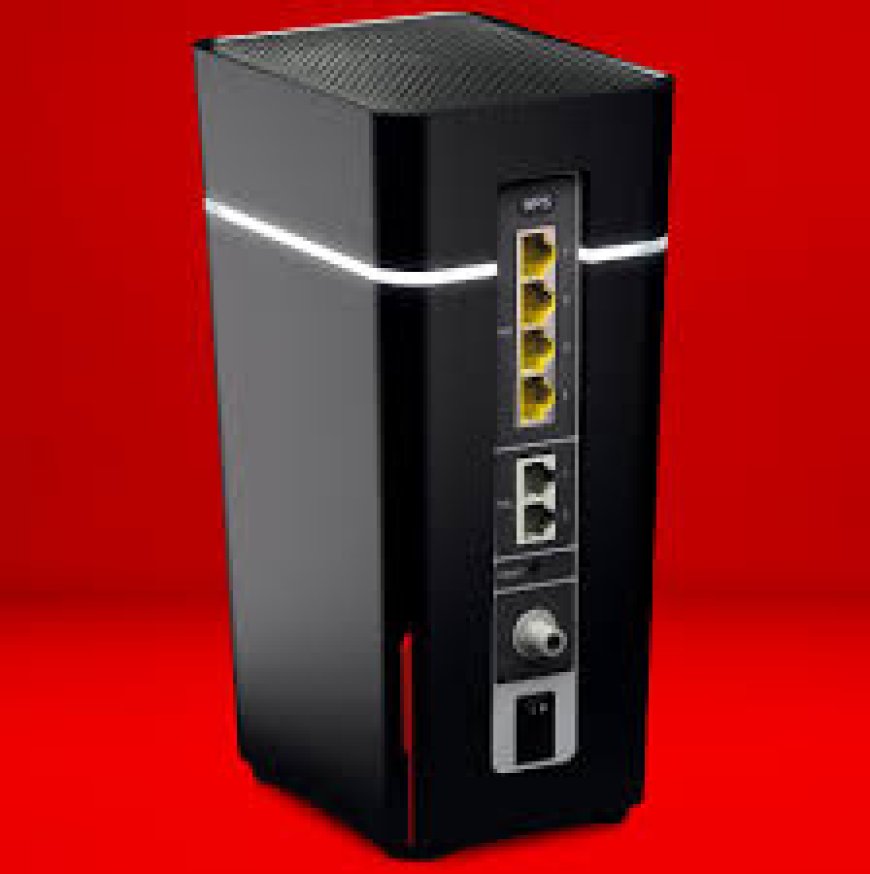
Internet problems can be very common in todays scenario and one of these is when the internet light on your Virgin Media router suddenly switches off. If you are using the Virgin Media Hub 5 and know what this light means and how to fix it can make things a little smooth. The solution to this problem is quite simple in many cases.
This guide will walk you through clear steps to check what is wrong with the lights and how to fix it whether it is a service outage, a cable problem or something with the hub itself. We will also look that how virgin app can solve this issue.
What It Means When the Internet Light Is Off?
Firstly, lets understand what the internet light actually indicates.
-
When the light is on and stable then it usually means your Virgin Media Hub 5 is connected to the internet.
-
A blinking light often means it is trying to connect.
-
But if the light is completely off then it usually means:
-
A service outage in your area.
-
The router has not received internet from the modem line.
-
A hardware or settings issue inside the hub.
-
Let us understand the reasons causing such problems and how to resolve them.
Step 1: Check for a Service Outage
The first thing is to look for a Virgin Media outage in your area.
Heres how:
-
Go to the Virgin Media Service Status page on your mobile phone (if you have active internet connection).
-
You can also use Virgin Media app as this app will notify you if there is a known issue.
Step 2: Power Cycle the Virgin Media Router
Sometimes, all your Virgin Media Hub 5 needs is a clean reboot.
Heres how to do it right:
-
Turn off the power using the switch at the back.
-
Take out the routers plug from wall socket.
-
Wait at least for 60 seconds.
-
Connect it back in the wall socket and turn it back on.
Wait until the lights become stable. If the internet light is still off then move to the next step.
Step 3: Make Sure Every Cable is Secured
It is essential to check all the cables that they should not be loose or damaged. It is very common issue.
-
Make sure that the white coaxial cable is connected properly to both wall socket and the router.
-
Check the power cable carefully. Sometimes it may look like it is connected but not completely pushed in.
-
If you are using an ethernet from a modem or splitter then cross-check that too.
Sometimes, gently pressing each cable inside can help to connect it properly.
Step 4: Run a Quick Check Using the Virgin Media App
The Virgin Media app is not just for checking bills but it can actually help you fix connection problems.
Open the app > Go to 'Broadband' > Run a test.
It will scan your Virgin Media router and tell you if theres a fault, no signal or setup issue.
This step can save you time calling support. The app often provides quick-fix suggestions or estimated restoration times.
Step 5: Reset Your Virgin Media Hub 5
If everything is good and there is no outage, cables are good and app shows nothing but still the internet light is off then go for a full reset.
Heres how:
-
Look for a tiny reset pinhole at the back of your router.
-
Use a paperclip or SIM pin to press and hold it for 1015 seconds.
-
Let go when you see the lights begin to flash.
This will restore factory settings. Give the router 10 minutes to reboot completely. Then try to connect again.
Some Essential Tips
-
Don't ignore the lights. They tell you a lot. If more than one light is off, the issue may be bigger.
-
Place your router somewhere open. While this wont fix a light issue directly, poor placement can worsen signal stability.
-
Regular restarts every few weeks can keep the hub running smoother.
FAQs
Q1. Why is the internet light off on my Virgin Media Hub 5?
The off light indicates that the router is not receiving internet connection because of an outage, a loose cable or a fault in the router itself.
Q2. Is resetting of Virgin Media router delete the settings?
Yes. A full reset will remove all the custom settings including the Wi-Fi names, passwords and parental controls. The router will return to its factory state again.
Q3. How do identify for Virgin Media service outage in my area?
You can check outage with the help of Virgin Media website or the Virgin app. Both platforms offer real-time service updates based on your postcode.
Q4. What to do when the internet light is on and still unable to browse?
Try with restarting your device, reconnecting to the Wi-Fi or using a different browser.